Expenses in AionHRMS
Employee expense reimbursement, checked against attendance.
An employee photographs a bill. The manager sees it beside where that person was on the day. Accounts sees who is owed what, and pays by bank or with salary. All of it in the system that already holds your attendance.
Available on request, and switched on per company.
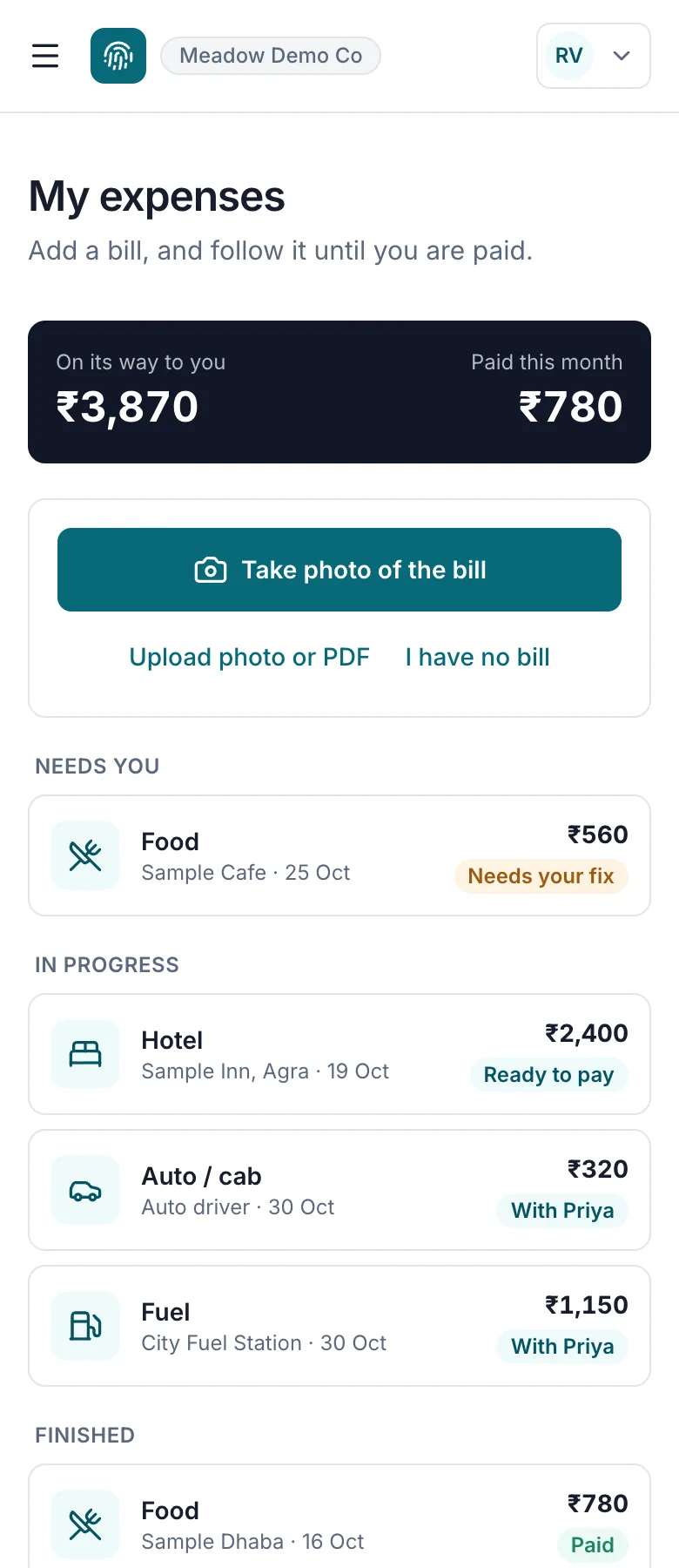
The employee's page and the approver's view. Screens from a demo company, with made-up people and bills.
AionHRMS Expenses is an employee expense and reimbursement module inside AionHRMS, a cloud attendance and payroll system. An employee photographs a bill on a phone and the amount, date, shop and category are read from it. The bill goes to their reporting manager, who sees it beside the place it was added, that day's attendance or leave, the category limit and any matching bill in the company. Approved bills wait in one list until they are marked paid by bank transfer, UPI, cash or cheque, or added to a salary as a separate payslip line. It is available on request and switched on per company.
Last updated 31 October 2026.
How an expense claim works, from bill to paid
Each bill travels on its own. Nobody waits until month end to build a report, and the employee can see where every bill is.
- Step 1
Photograph
The employee takes a photo of the bill, or uploads a photo or PDF. The amount, date, shop and category are read from it.
- Step 2
Decide
It goes to one named approver, who sees the bill beside that day's attendance, the place it was added and any matching bill.
- Step 3
Ready to pay
Approved amounts wait under To pay, one row per person, with how long each person has waited.
- Step 4
Paid
Marked paid by bank transfer, UPI, cash or cheque, or added to a salary. The employee can see it on their own page.
The photo is the form
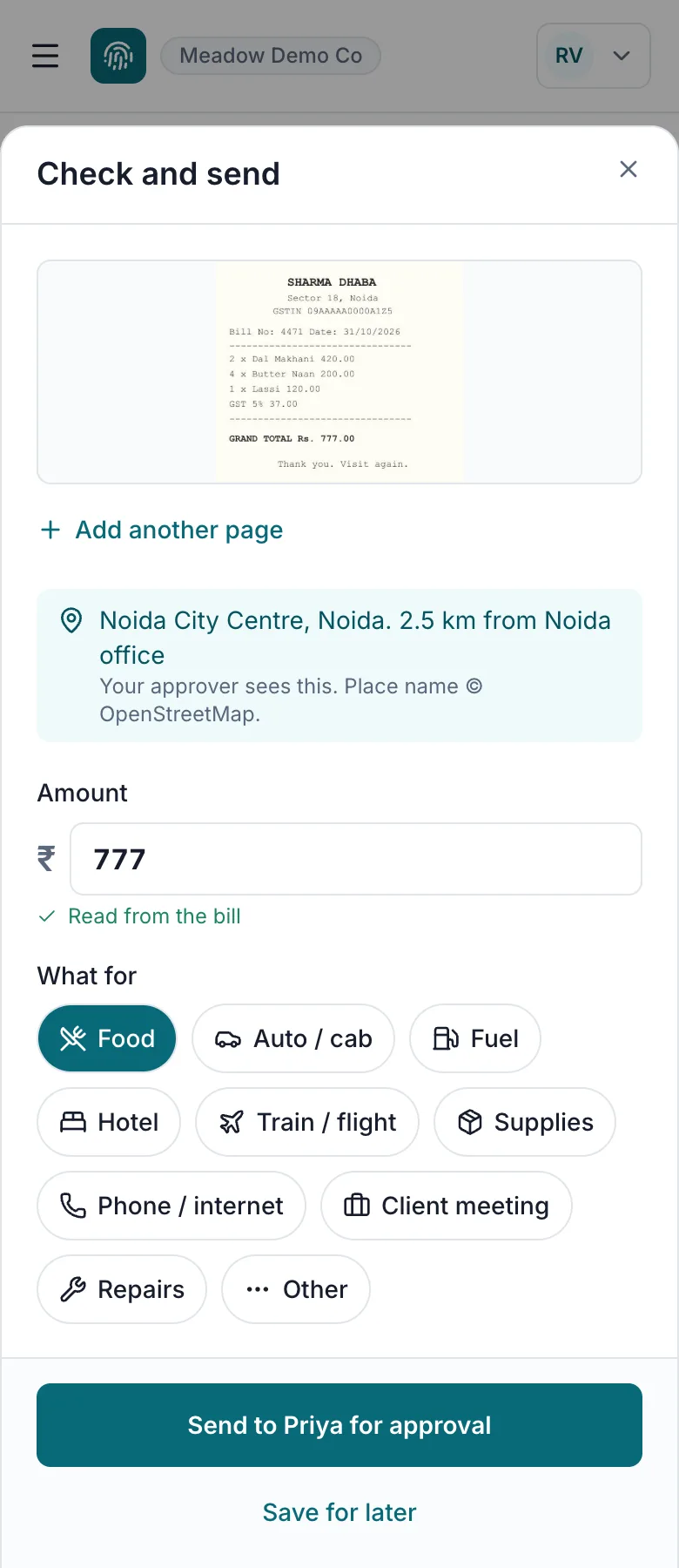
Most expense forms ask people to type out what is already printed on the bill. Here the photo comes first. The amount, date, shop and category are read from it, and the employee only checks them and sends.
- Take a photo, upload a photo or PDF, or add an expense with no bill and a reason
- Up to five pages on one expense, for a long hotel folio
- Anything read from the bill can be changed; if the amount differs from the bill, the approver sees both
- Save for later keeps a bill to finish another day
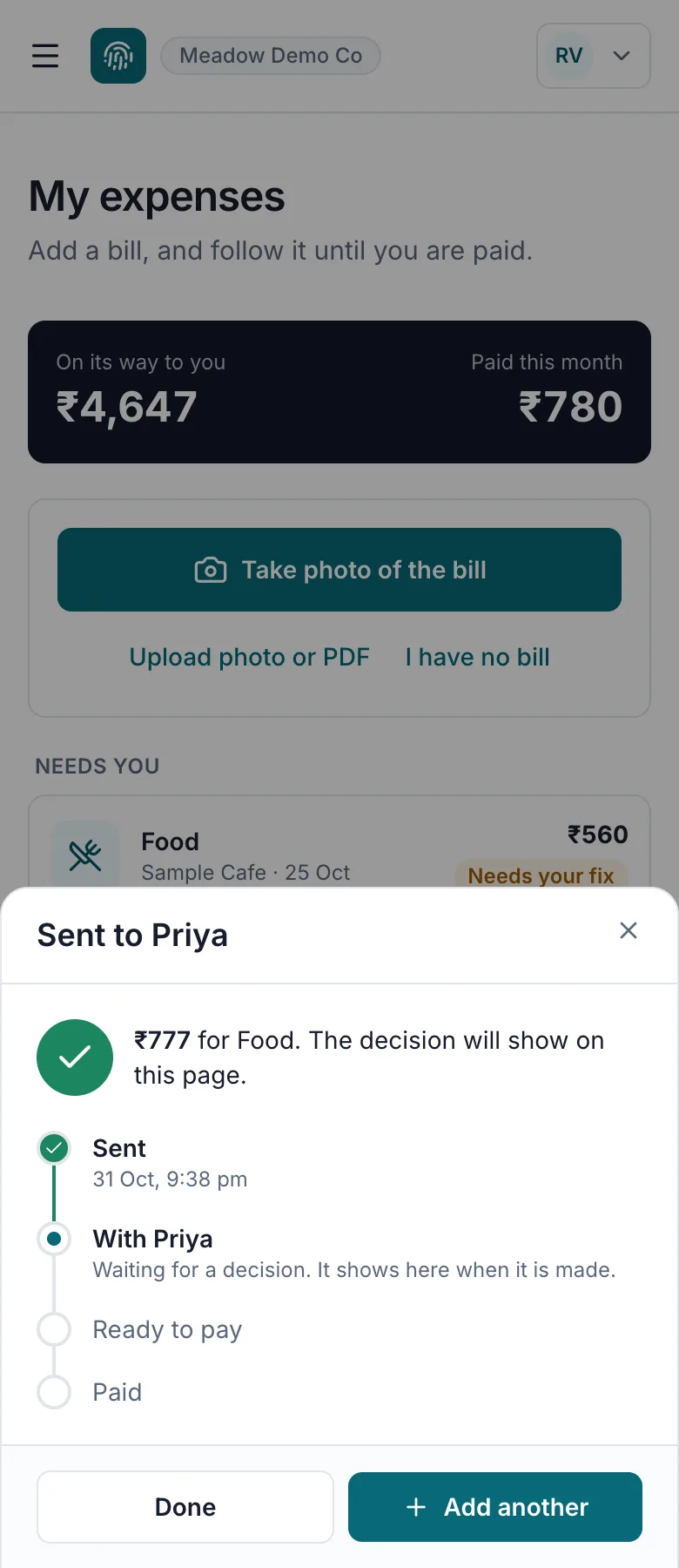
- After sending, a tracker shows where it is: Sent, With the approver, Ready to pay, Paid
Reading is automatic and can be wrong, which is why the employee checks it and the approver has the bill itself. A bill that cannot be read is typed in by hand and carries on the same way.
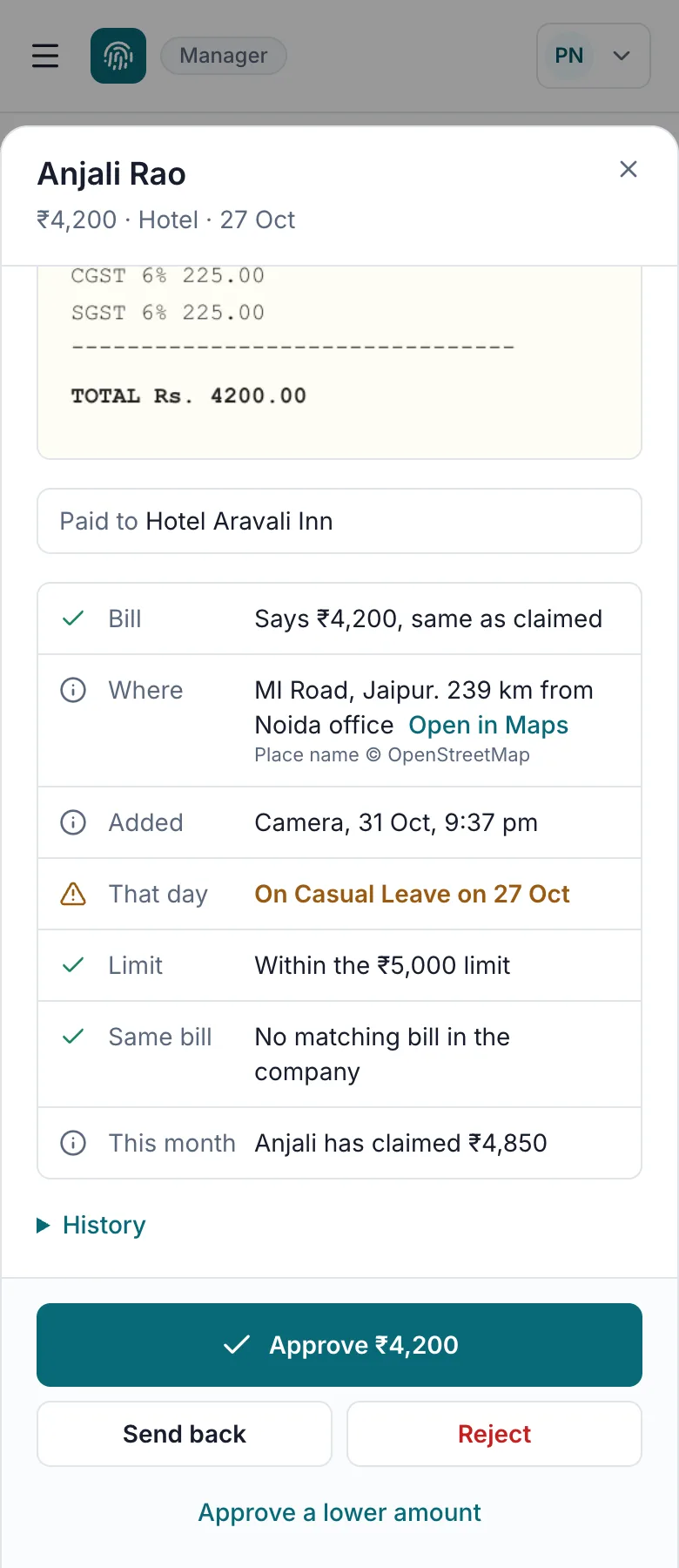
Expense approval with the day's attendance beside the bill
An expense tool on its own cannot know where someone was on the date of a bill. AionHRMS already holds the attendance and leave record, so the approver reads it next to the bill, in plain words.
| Line | What it says, and where that comes from |
|---|---|
| Bill | Bill says ₹1,240, claimed ₹1,740The amount read from the bill, against the amount claimed |
| Where | MI Road, Jaipur. 239 km from Noida officeThe phone's position when the bill was added, and the nearest company location |
| Added | Camera, 31 Oct, 9:13 pmCamera or files, and when |
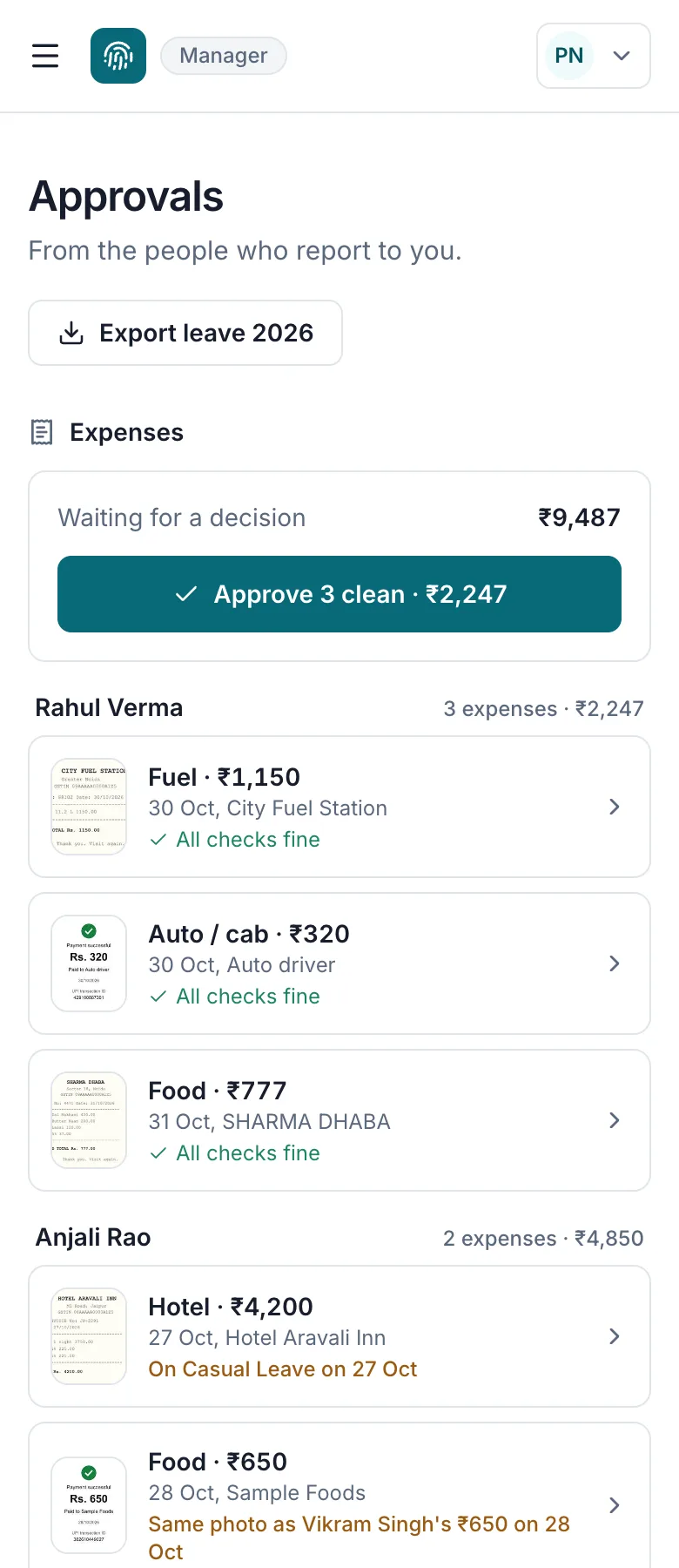
| That day | On Casual Leave on 27 OctPunches, leave, holidays and weekly offs for the date on the bill |
| Limit | Within the ₹5,000 limitThe limit your company set for that category |
| Age | Bill is 90 days old, the company allows 60The bill's date, against your company's setting, with the employee's reason |
| Same bill | Same photo as Vikram Singh's ₹650 on 28 OctOther bills in your company: same photo, same bill number, or same amount, date and shop |
| This month | Anjali has claimed ₹4,850That person's total for the month |
These are facts, not verdicts. Someone on leave may have a good reason, and a bill from another city may be the whole point of the trip, so being far from the office is never a warning. Nothing is rejected automatically.
One approvals page for the manager
A manager already decides leave and attendance corrections on the Approvals page, so expenses arrive there too, grouped by person. Bills with nothing to look at can go together in one tap. The ones that need a look say why on the list.
- Approve 3 clean approves every bill with no warnings, and shows the total before you press it
- Approve, send back with a note, reject with a reason, or approve a lower amount and say why
- Sent back means fix and resend: nothing is lost, and the employee sees what was asked
- An approver is reminded when a bill has waited 1, 3, 7 and 14 days; after 7 days the company's administrators are told too
- A stale screen cannot approve the wrong amount: a decision names the amount it saw
Location is a stamp, not a trail
Knowing where a bill was added is useful. Following people around is not, and it is not what this does. The phone's position is read once, just after the photo, and saved with that bill. There is no background tracking and no route history. The employee is told before their first bill and sees the place before sending.
Default
Record
Location is saved when the phone shares it. A bill without one can still be sent, and the approver sees that it has none.
Stricter
Required
A bill needs a location before it can be sent. The employee is told what to turn on.
Not used
Off
Location is never asked for, and the approver sees nothing about it.
Your company locations only name the place, as in "2.5 km from Noida office". They are the same locations used for geofenced phone attendance.
Who is owed what: the To pay list
An approved bill does not disappear into a spreadsheet. It waits on one list, one row per person, with the longest wait at the top of the page, so nobody has to ask when they will be paid.
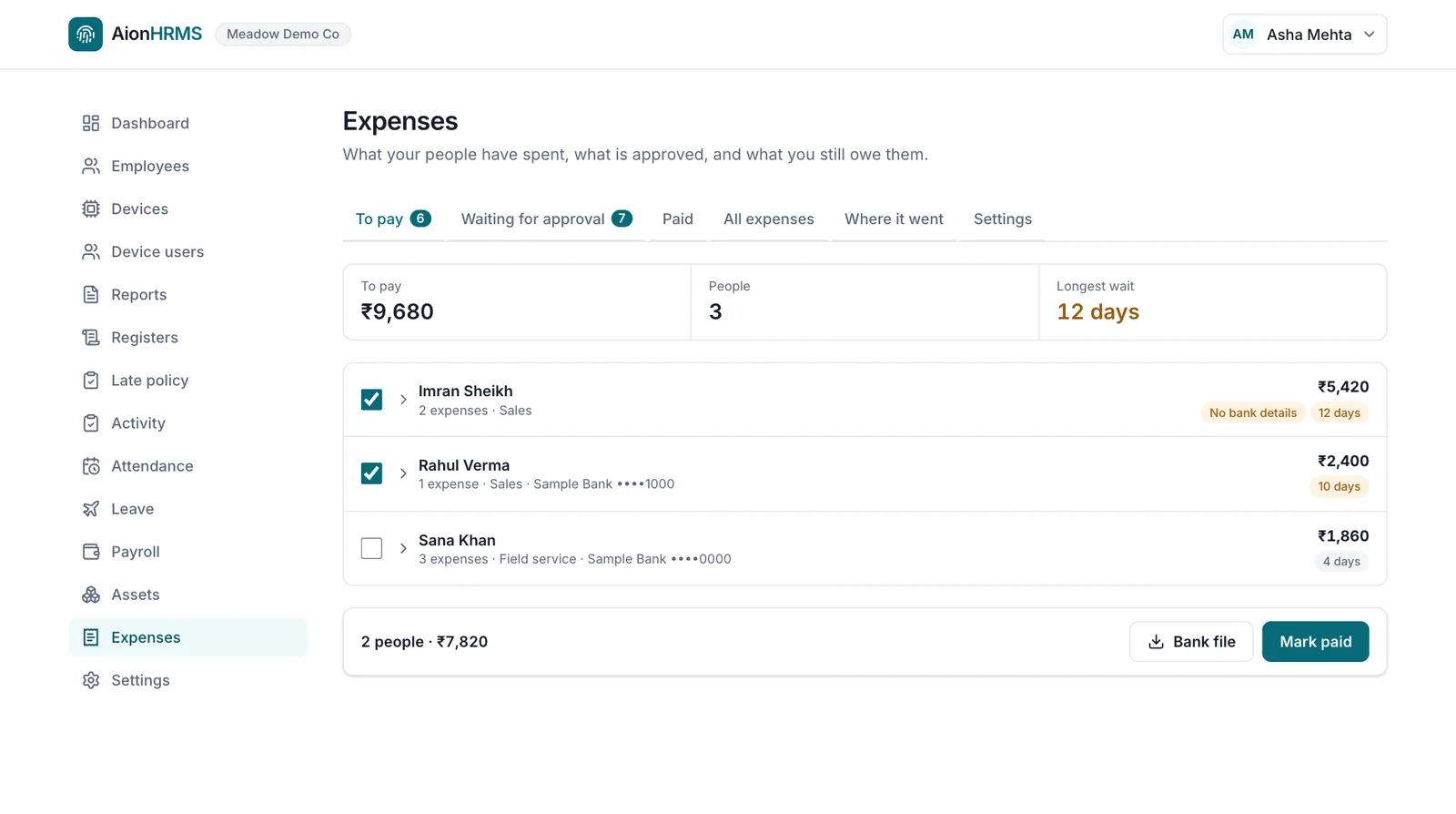
- Each row shows the person's total, how many bills, their bank details and how many days they have waited
- Bank file downloads a CSV for the people you select; anyone with no bank details is flagged and left out, by name
- Mark paid records the method, date and reference, and the employee sees it on their page
- Paying names the amount on your screen: if it has changed since you opened the page, the payment is refused
Paying reimbursements with salary, or on their own
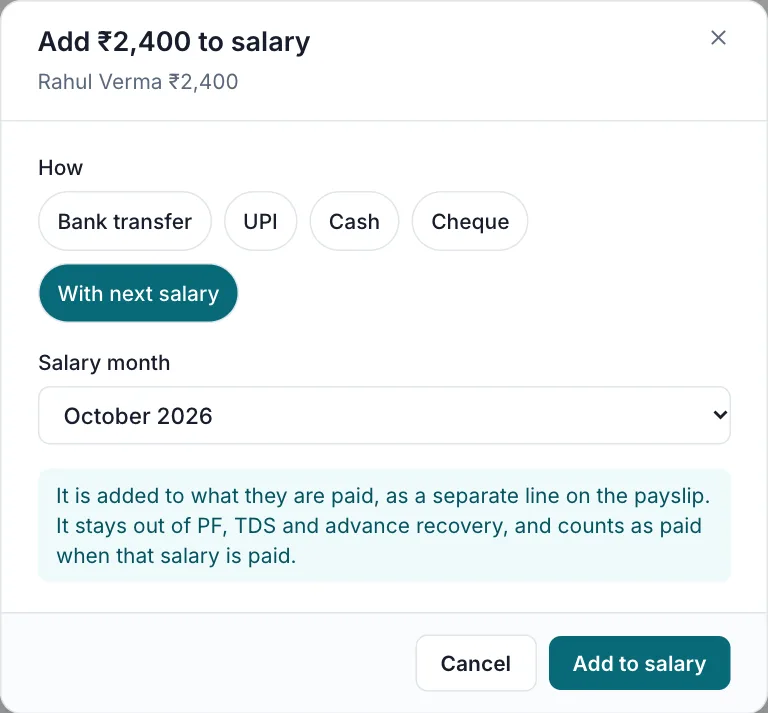
Many companies settle expenses on salary day. That should not change the salary. With next salary adds the amount to what the person is paid, as its own line, so PF, TDS and the salary figures stay exactly as they were.
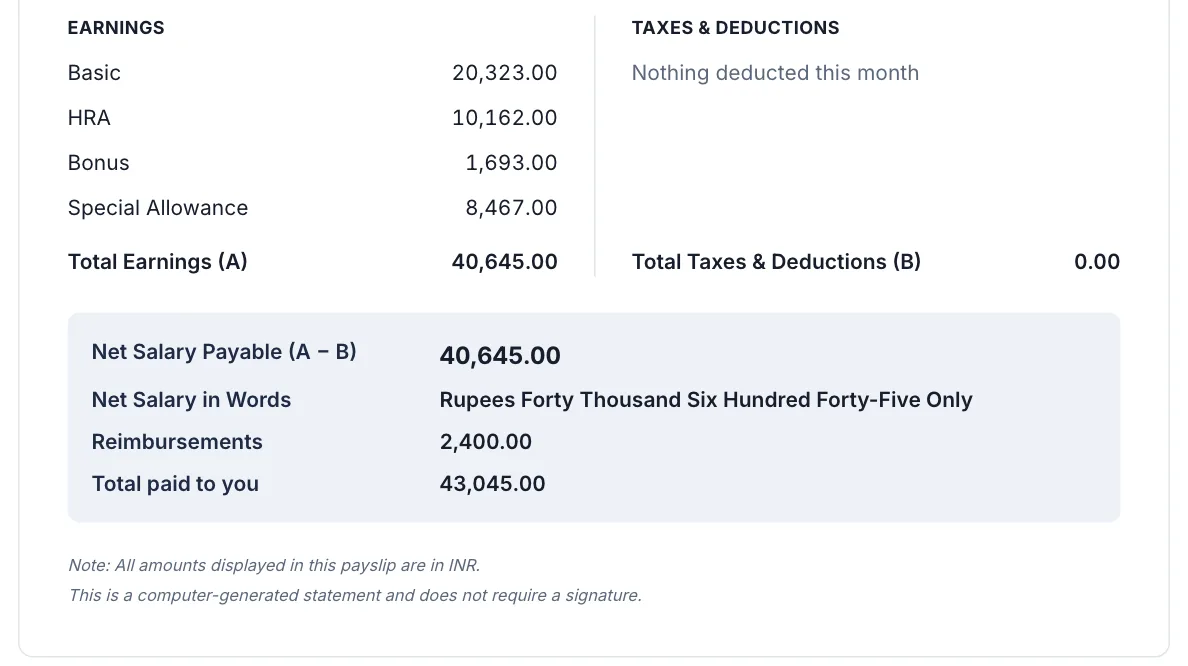
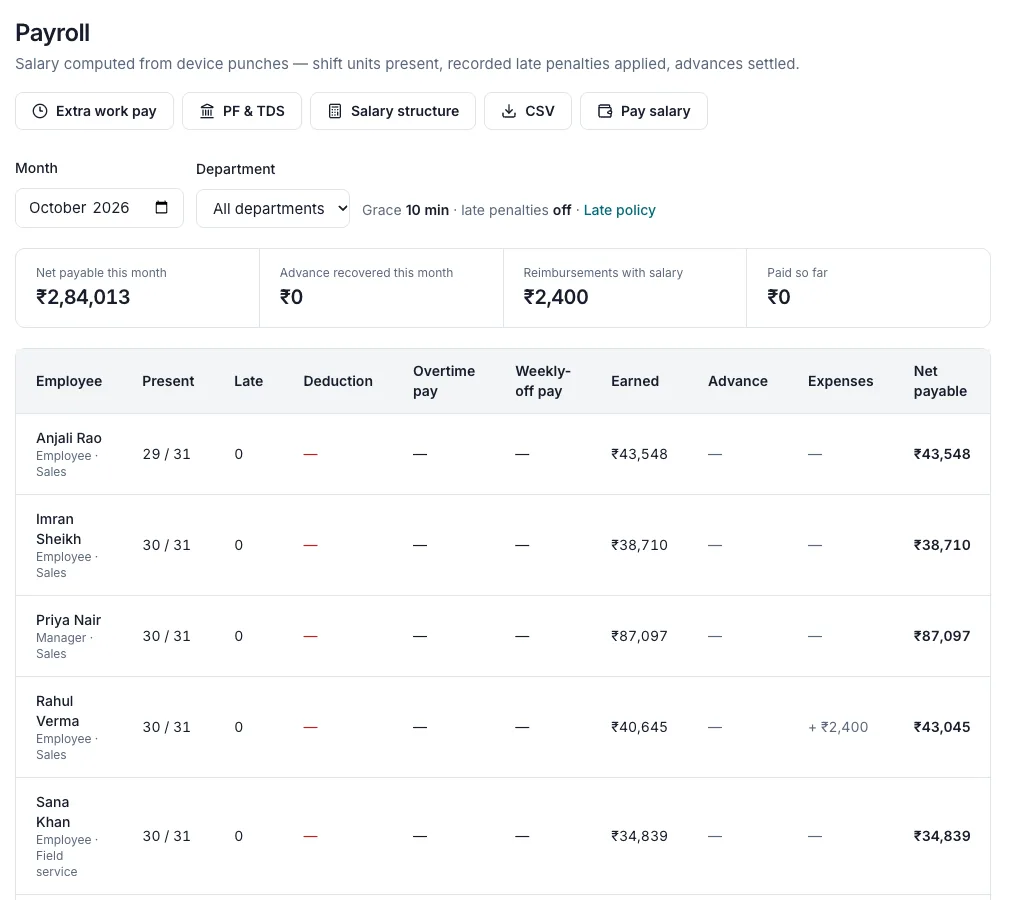
- Reimbursements get their own column on the payroll register and their own total at the top of the month
- The payslip shows net salary first, then Reimbursements, then Total paid to you
- They stay out of PF, TDS and advance recovery
- They count as paid when that salary is paid; if the salary payment is reversed, they go back to waiting for it
- Salary and reimbursement are booked as separate lines in your expenses
Where the money went: expense reports
Where it went totals any period by category, person, department and where the bill was added, so a rise in hotel spend or one team's claims is visible without building a report.
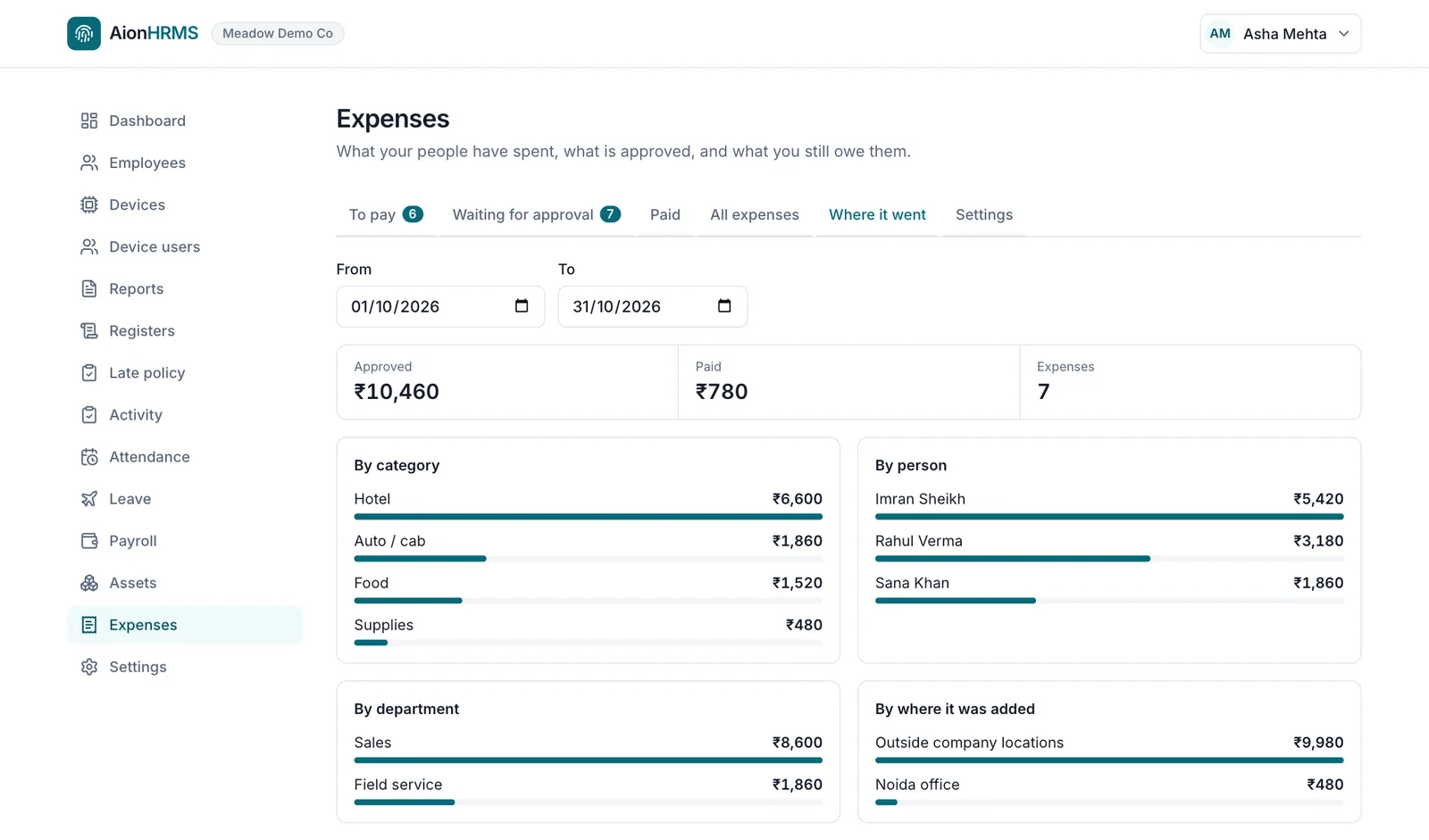
- All expenses lists every bill, with its status and who approved it, and downloads as CSV
- The CSV carries the bill total, tax amount and seller's tax number wherever they could be read, for your accountant
- Each bill keeps a dated history: added, sent, decided and paid, and by whom
Who can do what
| Employee | Adds bills, follows each one until it is paid, fixes and resends what comes back, and can withdraw a bill until it is decided. |
|---|---|
| Reporting manager | Decides bills from direct reports on the Approvals page, beside leave and correction requests. Their own bills go to someone else: nobody can decide their own. |
| Owner | Runs the Expenses page: decides any waiting bill, pays, sees where the money went, and sets categories, limits and the default approver. |
| HR Manager | The same page, once the owner allows it under Settings → Permission. |
What your company sets
- Categories, with a limit per category and the amount above which a bill is required
- A default approver, for anyone with no reporting manager
- How old a bill can be before the employee has to give a reason
- Whether location is recorded, required or off
- Your tax number, which employees can copy when a hotel's front desk asks for it
Email notifications and reminders
Anyone with an email address on their record is told by email: the approver when a bill arrives, the employee when it is decided and when it is paid, and the company's administrators when approved bills are waiting to be paid. App notifications are not on yet. Everyone can see the current state on their own page either way.
What Expenses does not do yet
Better to know now than after you have switched it on.
- Kilometre-based travel claims and daily allowances
- Trip advances
- A second approval step, or approval routed by amount
- Posting to Tally, or GST returns; All expenses downloads as CSV for your accountant
- Sending a bill over WhatsApp
- Moving money: you pay from your own bank, and AionHRMS records it
- Judging whether a bill is genuine: it shows matches, and a person decides
What happens to bills and locations
- Bills are kept in private storage and open only for the employee, whoever decides the bill, the company's expense administrators and our platform team when supporting your account
- To read a bill, its image is sent to OpenAI. Nothing is decided by it: the employee and the approver see what was read
- To name a place, the coordinates are sent to OpenStreetMap's Nominatim service or Google Maps, and the screen credits the source
- A location is saved only with the bill it belongs to
More in the privacy policy and data security & compliance.
Frequently asked questions
Is expense reimbursement part of AionHRMS?
Yes, as a module that is switched on per company. It is available on request: ask us and we turn it on for your company. Until then, employees and managers do not see it.
How much does it cost?
Expenses is not on the published price list. It is available on request, so ask us when you ask for it to be switched on.
Do we need a biometric machine to use it?
No. The That day line reads whatever is in the attendance register, whether from a terminal or a geofenced phone punch. If your company records no attendance, the line says so and everything else works.
Does it track where employees are?
No. Where your company keeps location on, the phone's position is read once, just after the photo, and saved with that bill. There is no background tracking and no route history. The employee sees the place before sending.
Can an employee refuse to share location?
It depends on your company's setting. With Record, the default, they can still send the bill and the approver sees that it has no location. With Required, a bill needs a location before it can be sent. With Off, it is never asked for.
Does it catch fake bills?
It does not call a bill genuine or fake. It shows the approver when a bill has the same photo, the same bill number, or the same amount, date and shop as another bill in your company, and when the bill's date falls on leave, a holiday or a weekly off. A person decides.
What if the amount is read wrongly?
The employee checks every field before sending and can change any of them. If the amount sent differs from what was read, the approver sees both. If the bill cannot be read, the employee types the details in.
Who approves if someone has no reporting manager?
The company's default approver, then the first company administrator. If there is nobody else, a sole administrator's own bill is approved automatically; otherwise the employee is told to ask an administrator to set up an approver.
Can reimbursements be paid with salary?
Yes. Choose With next salary and a month. The amount appears in its own column on the payroll register and as a separate line on the payslip, stays out of PF, TDS and advance recovery, and counts as paid when that salary is paid. If the salary payment is reversed, it goes back to waiting for that salary.
How are people told about a bill?
By email, to anyone with an email address on their record: the approver when a bill arrives, the employee when it is decided and when it is paid. App notifications are not on yet. Everyone can always see the current state on their own page.
Does it work on an iPhone?
Yes, in the phone's browser, the same as on any phone. There is also an Android app on Google Play.
Does it handle other currencies?
Amounts are in your company's currency. A bill in a different currency is noted for the approver, who sees both; nothing is converted.
Want Expenses for your company?
Tell us your company and who approves expenses today. We switch it on for your company, and the next bill your team photographs goes through it.